
**Disclaimer** The information below is provided without any guarantee or warranty. Making changes to your system is done at your own risk. HNC Rust takes no responsibility for any damage or misconfigurations that may occur to your system from following these directions. While these steps should be safe, if you don’t really know what you’re doing, you should stop now and ask a support rep from your computer’s manufacturer for assistance.
This is a work in progress and is by no way complete.
Client side FPS is very tricky and low FPS can be caused by a number of things. There isn’t one “catch all” reason you could be experiencing sudden low FPS, but here are a few things you can check.
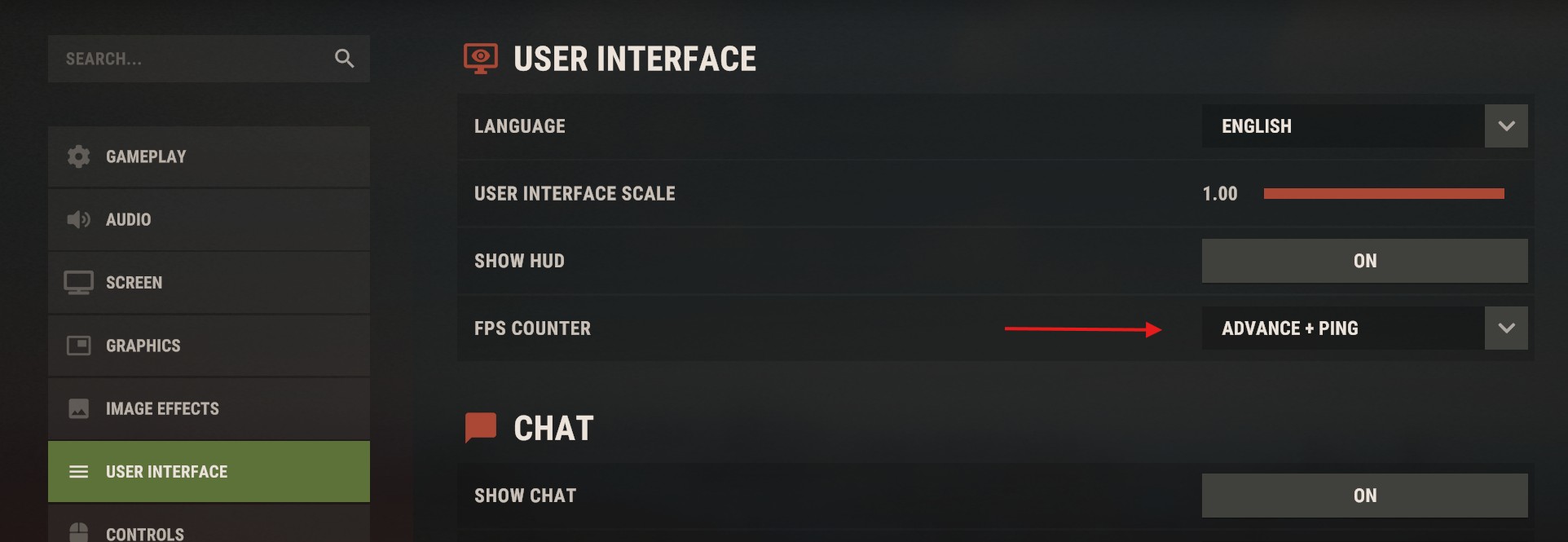
- First off, make sure you have the FPS counter turned on. We recommend setting it to Advance + Ping in settings. This is located under Options -> User Interface -> FPS Counter. This will show you your in-game FPS in the bottom left of the screen.
- If you have 16GB or less of memory and only onboard video, Rust may be a struggle to play. Onboard video shares your main memory and is often not the best for gaming. Close all other programs possible while playing Rust to free up as much memory and CPU time as possible. This includes web browsers.
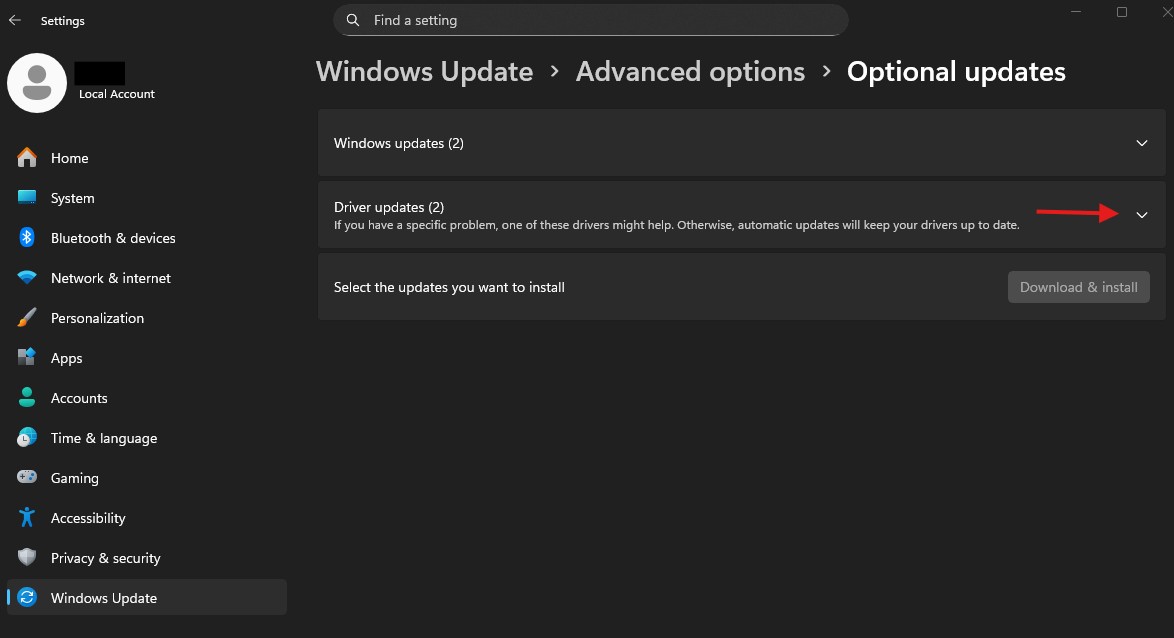
- Make sure you have the latest video drivers installed. Often, you can find these under optional updates in Windows Update. For Windows 11, these are located in Settings -> Windows Update -> Advanced options -> Optional updates.
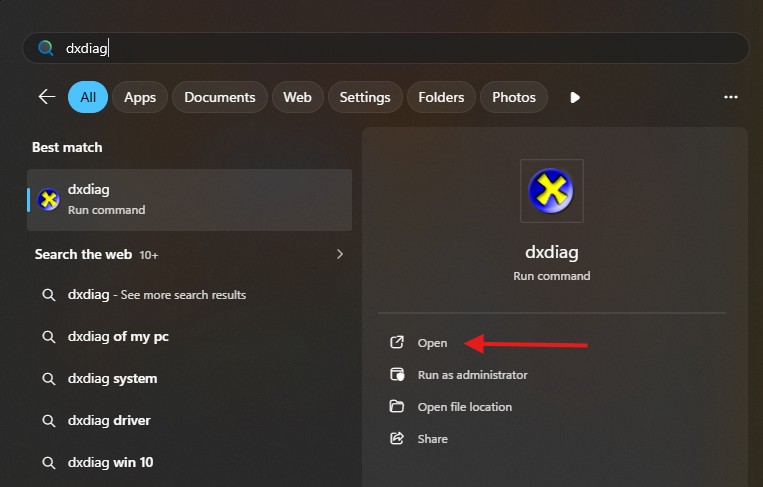
- You can also go to your card’s chipset manufacturer’s website to download the latest drivers. You can find out what chipset your card has by running DXDiag. Just hit the Windows Start button and type dxdiag then click Open.
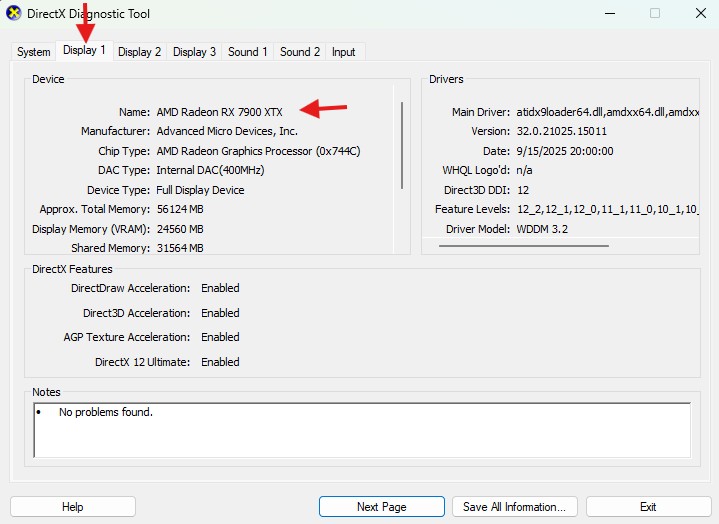
- Go to the display tab (you may have more than one) and note the name listed at the top. In the example below, this is an AMD Radeon RX 7900 XTX. If you have multiple display tabs, check all to see if a different name is listed (This is especially true on Laptops!)
- Grab updated drivers for any card listed. You can find drivers from the top 3 makers below:
- Try lowering your graphics settings. In Options -> Graphics, change your preset to Medium or even Low if its not already there. This will reduce how hard your graphics system has to work and could increase your FPS.
- It’s also possible, if the game seems to freeze for a moment, that your client could be doing a Garbage Collect. This is a normal procedure when your computer starts running low on memory and the game client needs to free up memory. See our other article on this here: Game appears to freeze for half a second.